
What is an order?
An order is a record indicating type, quantity and fees for a registration, or for additional services on offer at the event (e.g. gala dinner, on-site poster printing, etc.).
Registrants manage their own orders by logging into their web accounts. See screen capture of the order progress bar in registrants' web accounts.

As an admin you can manage all orders on the Orders Dashboard. To access it, in the left hand menu navigate to Registrants >> Orders Dashboard. The first step in effectively managing orders is to understand the different order statuses
|
|
Incomplete - This icon indicates the order is started but incomplete. Unpaid. The registrant “dropped off” at some point after selecting the registrant type and before selecting payment method. |
|
|
Pending - This icon indicates the order is complete but awaiting payment confirmation. Unpaid. |
|
|
In Process - This icon indicates the order payment is in process, either because there is a payment commitment/warranty or because it is partially paid. |
|
|
Confirmed - This icon indicates the order is complete and payment is confirmed. |
 |
Cancelled - This icon indicates the order has been cancelled because a corrective has been generated. |
|
Deleted ⎯ Order deleted. The record appears highlighted in red. To help track actions, deleted orders do not disappear from the system but are marked as deleted. For more information, see deleting orders. |


The dashboard displays a number of columns and buttons that you may not be familiar with. Here we provide a key to help you manage orders. To operate the orders dashboards, we recommend working with a high resolution screen so all dashboard buttons can fit on the screen. If you do not use monitors with a high resolution, we recommended to zoom out (Press [Ctrl] + [-] on a PC or [Cmd] + [-] on a Mac) on your browser in order to view all buttons and avoid horizontal scrolling.

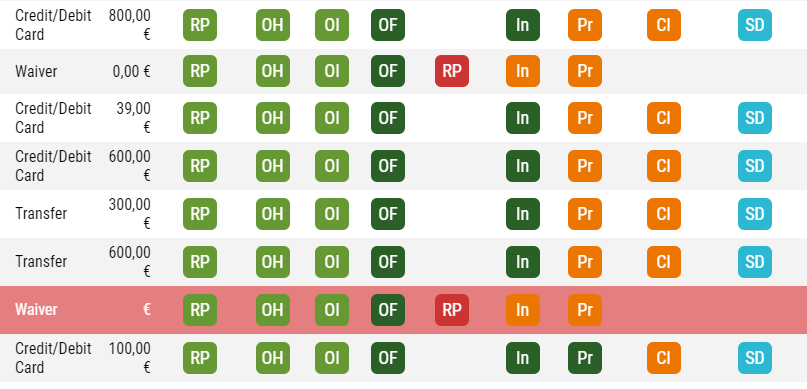
(RP) Registrant Profile
Pressing this button enables you to edit the profile of the registrant associated with the order without leaving the orders dashboard to navigate to the registrant dashboard.
(OH) Order Header
Pressing this button enables you to edit the header details which appear in the area at the top of the Order Form and Invoice.
(OI) Order Items
Pressing this button enables you to edit item details which appear in the middle section of the Order Form and Invoice.
(OF) Order Form
Pressing this button enables you to view the whole order form in PDF.
(RP) Record Payment
Pressing this button enables you to record the order payment and confirm their status.
(In) Invoice
Pressing this button enables you to generate and see the order’s relevant invoice.
- Orange means the invoice has not been created yet and if you press the button it will be generated and available to view in PDF.
- Dark Green means the invoice has been generated and if you press the button you can view it in PDF.
(Pr) Proforma
Pressing this button enables you to generate and see the order’s proforma.
- Orange means the pro-forma invoice has not been created yet and if you click on the button it will be generated and available to view in PDF.
- Dark Green means the pro-forma invoice has been generated and if you press the button you can view it in PDF.
(CI) Corrective Invoice
Pressing this button enables you to create a corrective invoice to cancel an order. This button is available for invoiced orders only.
- Orange means the corrective invoice has not been created yet and if you click on the button it will be generated and available to view in PDF.
- Dark Green means the pro-forma invoice has been generated and if you press the button you can view it in PDF.
(SD) Send Document
Pressing this button enables you to send the relevant payment documents (order form, invoice/payment receipt, correction invoice/receipt) to the registrant. Note that you will have an email signature set for your administration account automatically assigned so all your emails sent are fully branded.
(RO) Restore Order
Pressing this button enables you to restore a deleted order in error. Note that deleted orders appear highlighted in red. For more information, see Deleting Orders.
(PL) Payment Log
Pressing this button shows all payments recorded on the order. This information is handy when partial payments are made on an order.
How do I use the search bar to find an order?
At the top of the page you will see a range of fields. You can use any one of these fields to search or filter through the list of orders.
Search
You are able to search by: Registrant ID, Order ID, Registrant’s Surname and Invoice No.
Select the field you would like to search by, enter the keyword. and click "Go!"
Filter
You are also able to apply filters. Select the category that you would like to filter by from the drop-down menus, and click "Go!"
You can also apply a combination of filters to refine your search.
Sort
Click on the sort by menu and select how you would like your results to be sorted. You can also select whether you would like to see the results in ascending or descending order.
Comments
0 comments
Please sign in to leave a comment.