
- In the left hand menu navigate to Registrations >> Orders Dashboard.
- Click on "Order Items" (OI) button on the order you wish to add, edit or delete an item.
- To Add an item, click on the "Add new" button and fill out the fields as appropriate.
- To Delete an item, select the item and click on the red "Delete" button.
- To Edit an item, double click on the item you want to make changes to.
- Click "Save".
Please use "i" icons for guidance.
Important Notes:
- When you edit an item, Order Form and Invoice in PDFs are immediately updated on both the control panel and the registrant's web account.
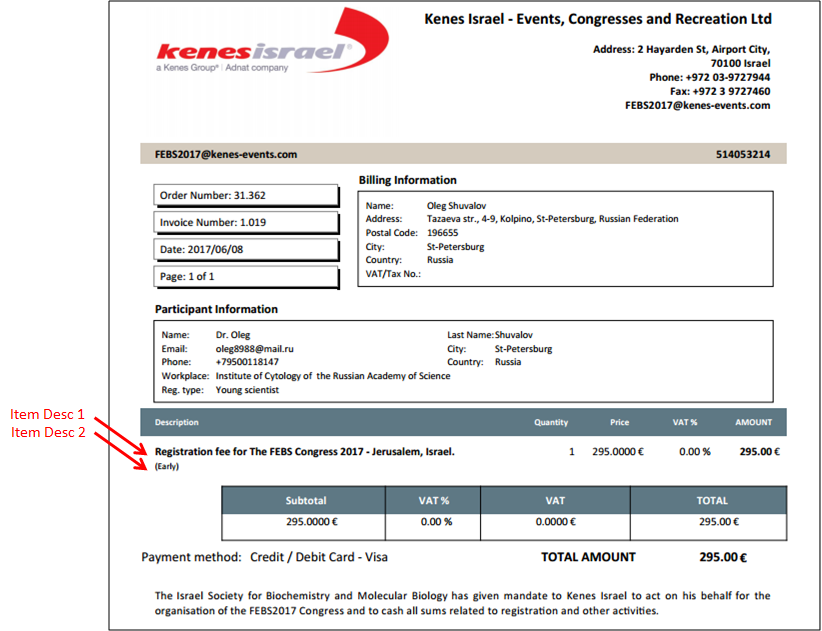
- Item Description 1 and 2 will appear on the Order Form and Invoice as shown on the image below.
Comments
0 comments
Please sign in to leave a comment.