
To record partial payments:
- In the left hand menu navigate to Registrations >> Orders Dashboard.
- Click on the red (RP) button of the order you would like to update.
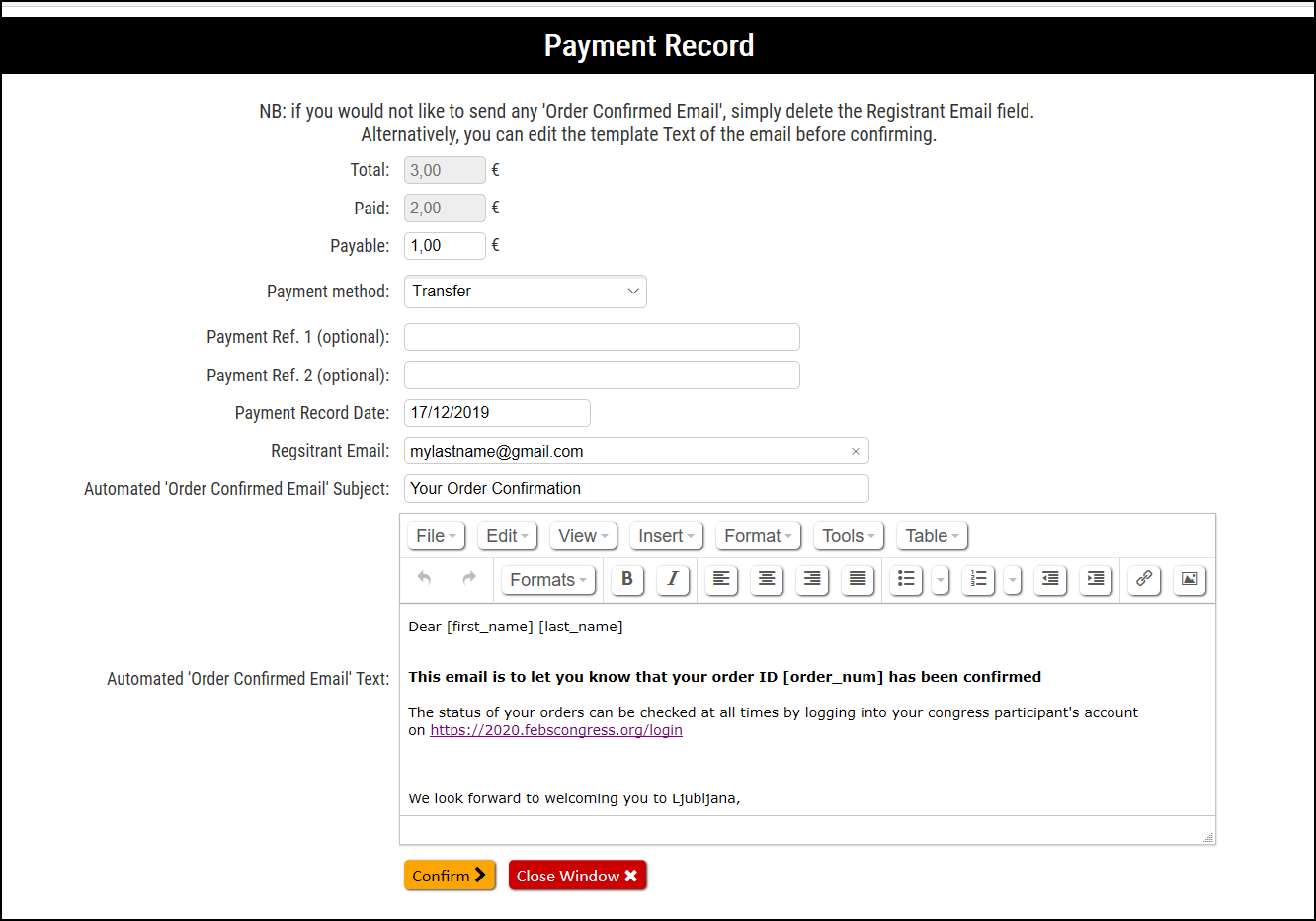
- You will be prompted with a screen (see screenshot below).
- By default the payable amount field will be filled in with the total amount. Enter the partially paid amount in the "Payable" field.
- Click "Confirm".
- If the paid amount is different from the total, then the order status will be updated to In Process
- If the paid amount is equal to the total, then the order status will be updated to Confirmed
- A Payment Log records all payments made on each order, which can be viewed by pressing the Payment Log (PL) button on the relevant order.
Notes:
- All recorded payments can also be exported in an Excel. For this, navigate to Exports >> Export to Excel >> Payments.
- The order header will display payment record date, method, and refs of the latest recorded payment on the order.
- The payable amount after a partial payment can be paid in full under 'My Orders' section on registrants' web accounts, only if payments via credit/debit cards are enabled for the event.

Warning: If an order item type = commission charge exists, then when the payable amount is clicked to be paid by card, the commission charge amount is removed.
Comments
0 comments
Please sign in to leave a comment.