
- In the left hand menu navigate to Abstracts >> Abstracts Config
- Update the fields as needed. Use "i" icons for guidance.
- Title and body character limits
- Addition, Edition, and Submission opening and closing dates. IMPORTANT to fill out and keep all six dates updated.
- Number of abstracts per registrant
- Display a question whether authors would like their abstract to be considered for oral presentation on the abstract submission form
- Graphical abstracts, full paper...
- Click "Save".
All abstracts have to be submitted onto a track. To create tracks, follow these steps:
- In the left hand menu navigate to Abstracts >> Tracks
- Click "Add new"
- Type in track names and notations. Use "i" icons for guidance.
- Click "Save".
Need to click yes or tick the box to display at least one track in delegates' submission form
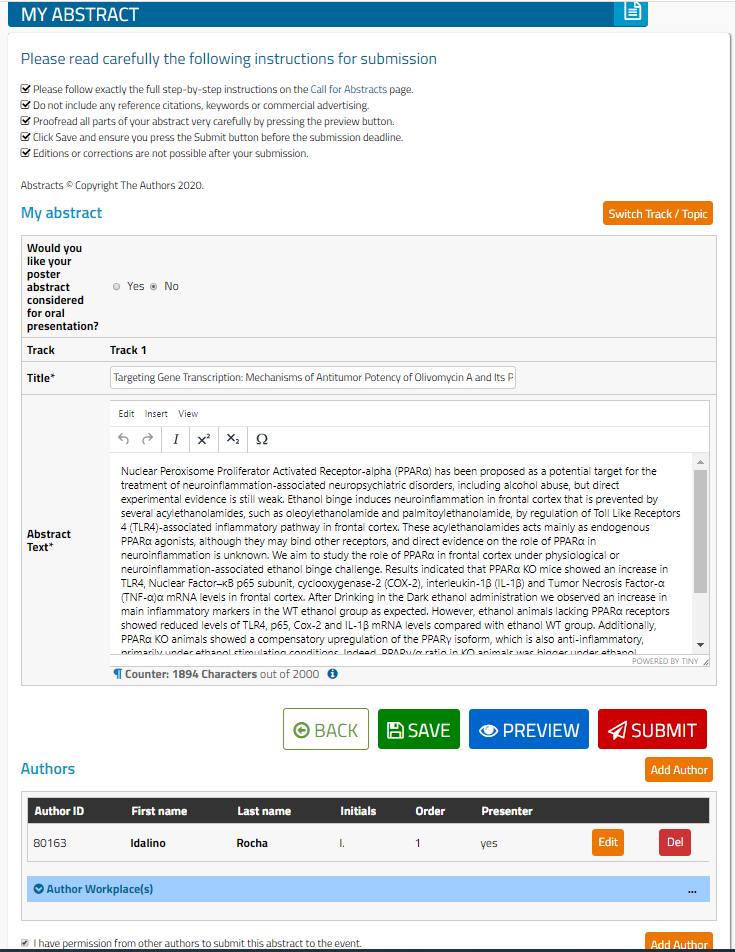
Because not all events have obligatory abstracts, submission is a separate tab on registrant web accounts. Because not all registrant types are required to submit an abstract, submission is not mandatory for completing a registration. Where abstract submission is required, it should be stated clearly in the instructions on the applications public page and can also be mentioned in the order complete email. See a screenshot below of the abstract submission form on registrant accounts under 'My Abstract'.
Should you need to create topics within the tracks, follow these steps:
- Go to Abstracts >> Tracks >> press the Topics button on the relevant track
- Click "Add new"
- Type in topic name and notation. Use "i" icons for guidance.
- Click "Save".
Examples of notations can be P for posters or PL for plenary lectures, etc. To learn more, see Notation Assignment.
Comments
0 comments
Please sign in to leave a comment.